

The mechanics, shown — not the magic.
Six short explainers on how a Kuvai teammate is built, grounded, gated, reached, scheduled and remembered. Accurate to the product as it ships.
You name the job. The engine writes the teammate.
- 1Add a Teammate asks for a name and a job title — “Inventory Planner”, “Bookkeeper”. Optionally, pick the projects and tools it should know.
- 2Kuvai can draft the job description from your company profile. The policies section is withheld from that draft on purpose, so it can’t invent approval powers.
- 3Every hire is attached to your Company Context by default — the profile Kuvai drafted from your website, which you can edit.
- 4On Hire, the engine writes the teammate’s role brief, tone and operating rules. It usually takes a minute or two; you don’t need to wait.
- 5Before saying hello, it looks around: one scan per connected source. Its first message makes one concrete offer to start on.
Add a Teammate
Knowledge Sources
Add a name and a job title to continue.
HireIt answers from your files, and shows where.
- 1Company Context comes first: your homepage plus up to 4 pages, drafted into 6 profile sections. Your edits always win.
- 2Projects keep files, folders and chats together, and you can connect a teammate to one to keep its work in one place.
- 3Attach what you work with to a message — 16 file types up to 150 MB — and the teammate reads it: PDFs, Word documents, spreadsheets, images and more.
- 4Your files stay scoped to your account, and the teammate works from the files and context you give it.
- 5When files aren’t enough, it uses the tools you connected, or built-in web search and deep research — and every source appears in the Transparency trail.
- PDF · Word · Slides
- CSV · Excel
- Scans & images (OCR)
- 01
Read & split by heading
- 02
Index for your account only
- 03
Search in parallel
- 04
Answer + Transparency trail
Transparency· 4 steps
- Read the attached price sheetPrice sheet 2026.pdf · p. 3
- Read the forwarded threadFrom dana@northwind.co
- Checked Northwind’s sitePricing — northwind.co
- Drafted the replyWaiting for your decision
You decide how far it goes. Self-started work checks in.
- 1In chat, it does what you explicitly ask: ask for a draft and you get a draft; ask it to update a record and it does. Email from web chat is drafted for you to send.
- 2Work it starts on its own — scheduled runs, follow-ups — is checked in code against its autonomy level. At the default, additive in-lane work runs, destructive changes are proposed to you, and out-of-lane actions never run on their own. Every decision is logged.
- 3A teammate can use a tool only after you connect it and assign it. In chat, that’s a Connect card.
- 4Evidence-gathering runs are classified read-only and blocked from writing. An exact duplicate write is refused.
- 5Proposals and questions arrive as cards with choices; your answer goes back with Send response. Stop, Pause work and Guardrails are one click away.
Reply to Brightline Supply — Invoice #4471
Amount matches PO-2291 ($4,200), due Thursday. One line item is billed twice — I drafted a note asking for a corrected invoice.
Send responseYour assistant has an address. Not your password.
- 1Mia, the Personal Assistant, exists from the moment you sign up.
- 2Mia has a Kuvai address of its own, with Copy and Add to contacts.
- 3You choose who may send: your sign-in email plus up to 4 more addresses you connect.
- 4A message is handled only if it was delivered to your Kuvai address and comes from one of your connected addresses.
- 5Your assistant reads attachments and checks your context, then answers it, works it out, or hands it to the teammate whose job it is — and never signs in to your mailbox.
- 6The outcome waits in Mia's Inbox, with the response and what's still awaiting one, on the web, iPhone and Mac.
Your Kuvai address
t••••••@••••••.com
CopySend or forward anything — Mia takes it from there.
- Fwd: Invoice #4471 — Brightline Supplyyou@company.comAwaiting response
- Fwd: Renewal terms?dana@northwind.coDraft ready
- Board deck — can you tidy slide 4?you@company.comDone
Say it once. It happens every Monday.
- 1Ask in chat — “every Monday at 8, summarise the pipeline” — and the teammate turns it into a schedule.
- 2Up to 25 active scheduled tasks per teammate, each with its last run, next run and the files it produced.
- 3Due tasks are claimed once, so a run can’t double-fire. Paused or retired teammates are skipped.
- 4Results land in the conversation and in living documents that grow over time.
- 5You hear about it: a cyan dot in the sidebar, a “New since…” divider, and in the iPhone app a “finished” push.
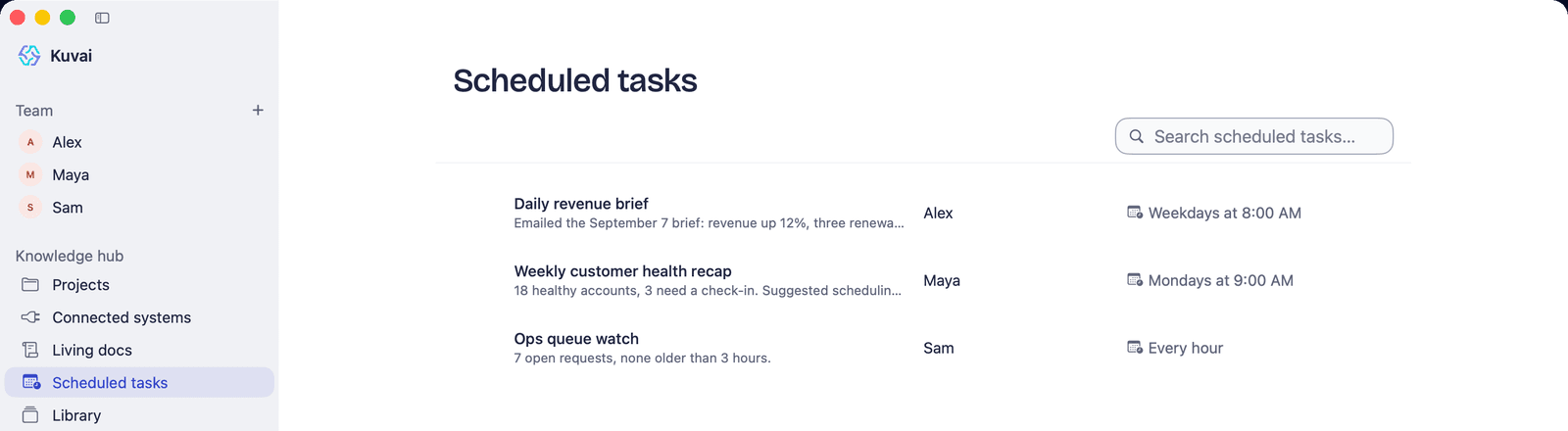
Scheduled tasks

It keeps the job, not just the chat.
- 1Each teammate keeps a private notebook: About the User, Standing Preferences, Conversation Memory, Informal Notes.
- 2Long conversations are summarised into memory instead of being forgotten.
- 3Corrections you make in chat — “the report goes to Dana, not me” — apply right away.
- 4Threads keep topics apart; memory spans them.
- 5A daily reflection proposes up to 3 refinements. You answer in plain words — “do #1, skip the rest”. Anything that needs your authority waits for that answer.
Ava’s notebook
About the User
Runs a 9-person design studio. Prefers bullet summaries before 9 AM.
Standing Preferences
Reports go to Dana, not Taylor. Never chase invoices under $200.
Conversation Memory
Oct 14–27: Q4 renewals; Northwind wants 12-month terms; Halden call booked.
Informal Notes
Pike & Rowe’s legal team is slow — check in every Thursday.
Illustrative. Written by the teammate; read every turn.
In the product
Every recurring job, on one page.
Ask in plain words — “every weekday at 8” — and it becomes a scheduled task with an owner, a cadence and its latest result. Up to 25 active scheduled tasks per teammate.
We’d rather show you the mechanics than ask you to trust a demo. Have a question about how something works? Ask us.
Try step 1 now. Name a job, watch a teammate take shape.
Your teammate appears here.
Any job title works. The library has 100+ to start from.
Questions, answered
How does Kuvai build a teammate from a job title?
You give it a name and a job title. Kuvai can draft the job description from your company profile, and on Hire the engine writes the teammate's role brief, tone and operating rules — usually in a minute or two. Before saying hello it looks around once per connected source and makes one concrete offer to start on.
What does a teammate know about my business?
Your Company Context first: Kuvai drafts it from your homepage plus up to 4 pages, in 6 profile sections you can edit. Then the files you attach — 16 file types up to 150 MB — and the projects you connect it to. When that isn't enough it uses the tools you connected, or web search and deep research, and every source appears in the Transparency trail.
Can a teammate act without asking me?
In chat it does what you explicitly ask. Work it starts on its own — scheduled runs, follow-ups — is checked in code against its autonomy level: at the default, additive in-lane work runs, destructive changes are proposed to you, and out-of-lane actions don't run on their own. Every decision is logged.
How do scheduled tasks work?
Ask in chat — "every Monday at 8, summarise the pipeline" — and the teammate turns it into a scheduled task. Each teammate can have up to 25 active, each with its last run, next run and the files it produced. Due tasks are claimed once, so a run can't double-fire.
Does a teammate remember past work?
Yes. Each teammate keeps a private notebook — about you, your standing preferences, conversation memory and informal notes — and long conversations are summarised rather than forgotten. A daily reflection proposes up to 3 refinements, and you decide which to keep.
Your team is one teammate away.
Describe the job. Kuvai builds the teammate. You decide how far it goes.